

Integration Information
Integration Information Guide
Collect API credentials and configure integration settings in the merchant backend before calling Smilepayz APIs. Sandbox and production use separate credentials and settings — always develop and test in sandbox first.
Overview
You need four types of information:
| Item | Where to find it | Used for |
|---|---|---|
| Merchant ID | Configuration Info tab | X-PARTNER-ID header |
| Merchant Secret | Configuration Info tab | API request stringToSign |
| Platform Public Key | Configuration Info tab | Verify callback signatures |
| Merchant RSA key pair | API Setting tab | Sign API requests; upload public key to Smilepayz |
Prerequisites
- An active merchant account with backend access
- Your server’s public IP address (for API IP whitelist)
- HTTPS callback URLs for pay-in and withdrawal notifications (recommended)
- A secure place to store Merchant Secret and your RSA private key
Sandbox Configuration
Step 1: Open sandbox Configuration
- Sign in to the merchant backend.
- Switch the top toggle to Sandbox.
- In the left sidebar, open Configuration.
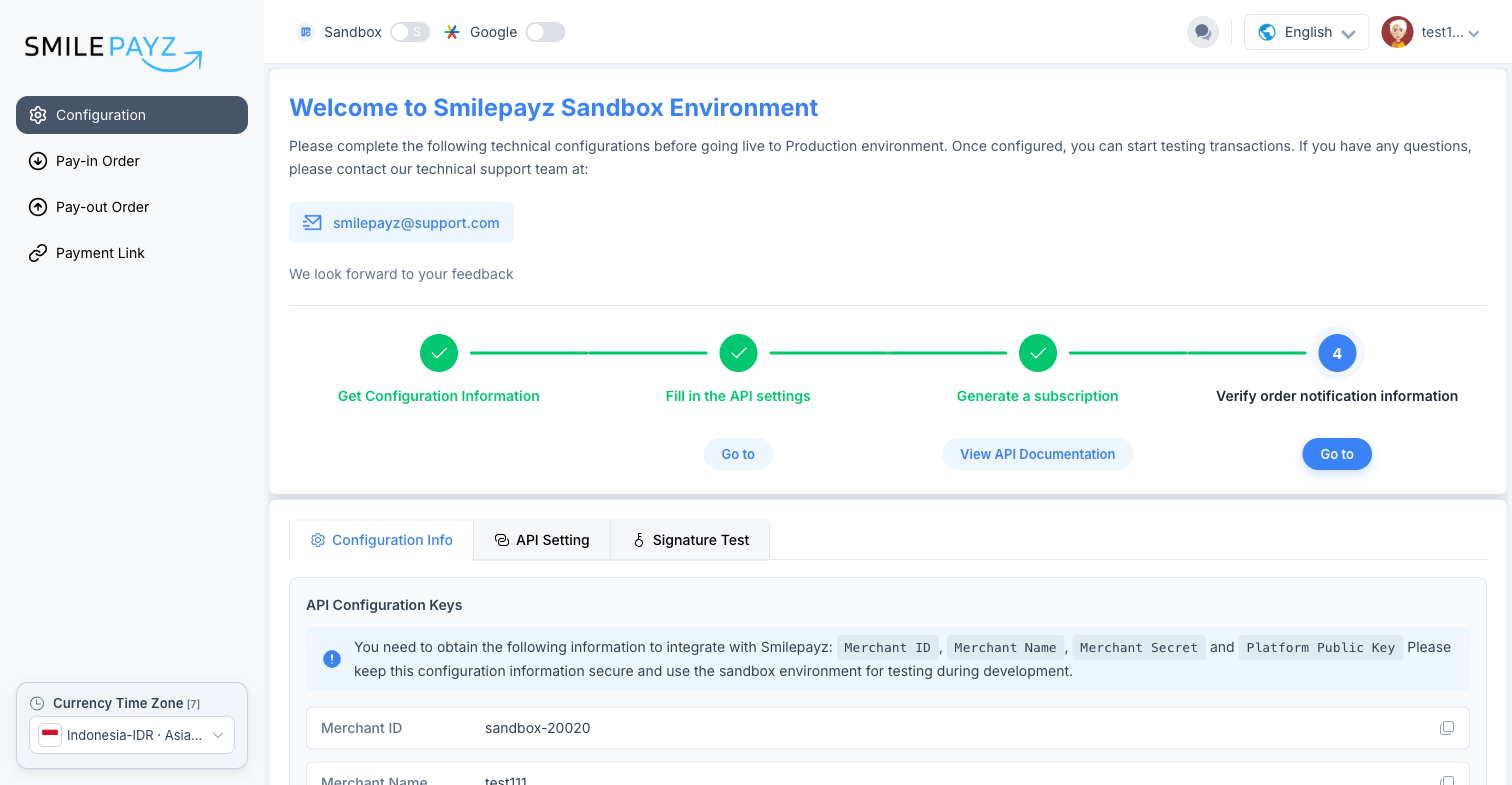
The page shows an onboarding checklist (configuration keys → API settings → API testing → callback verification) and three tabs below.
Step 2: Copy API Configuration Keys
Open the Configuration Info tab. Copy and store securely:
- Merchant ID — sandbox IDs are prefixed (e.g.
sandbox-20020) - Merchant Name
- Merchant Secret — used when building API signatures
- Platform Public Key — used to verify callbacks from Smilepayz
Use the copy icon next to each field.
Step 3: Configure API Setting
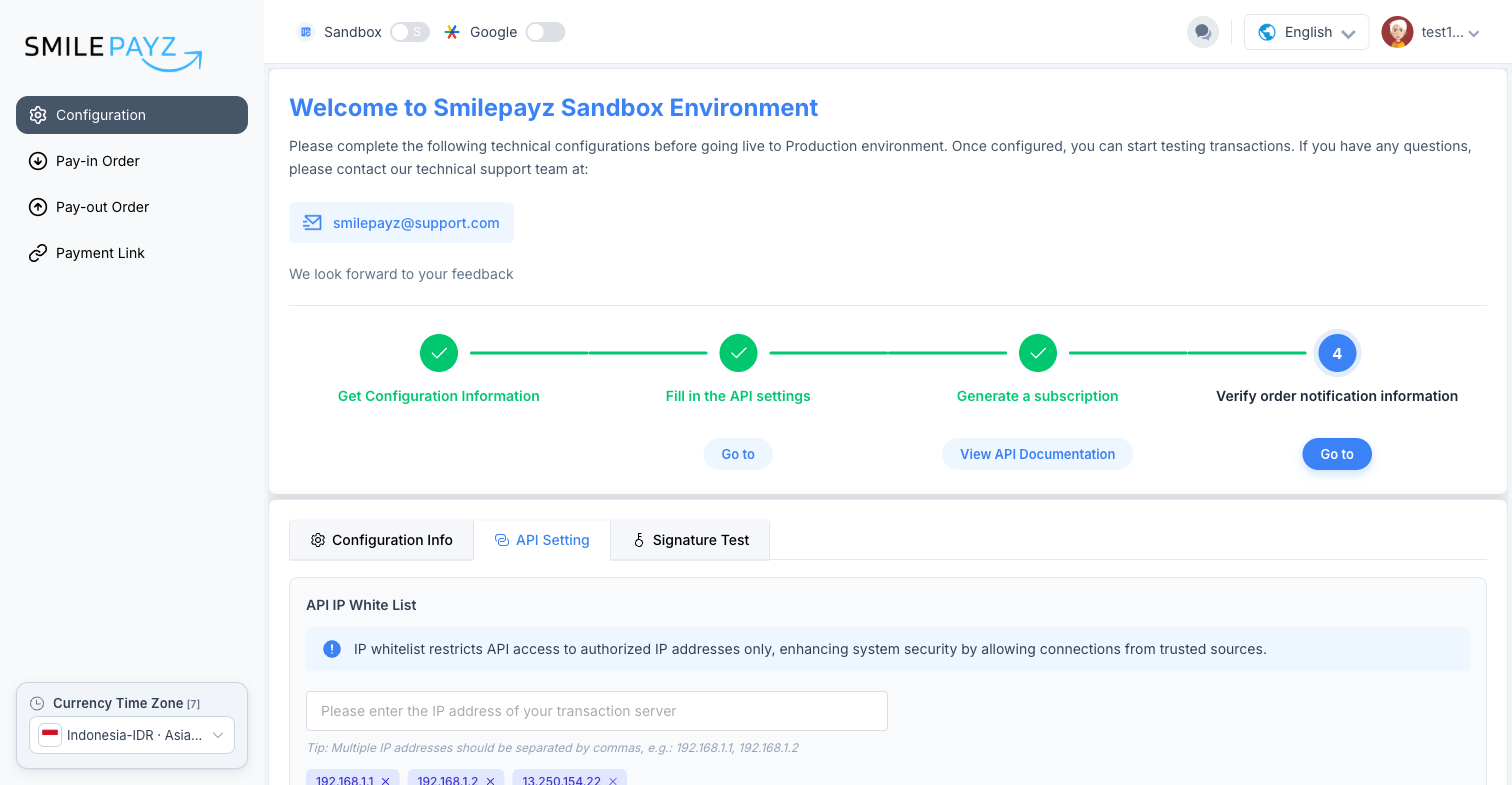
Open the API Setting tab and complete all three sections, then click Save.
API IP White List
- Enter the public IP(s) of the server that calls Smilepayz APIs.
- Separate multiple addresses with commas (e.g.
192.168.1.1, 192.168.1.2). - Press Enter to add each IP as a tag.
API calls blocked without whitelist
If your server IP is not whitelisted, sandbox/production API requests return a non-whitelist error.
API Notify Address
- Payin — callback URL when a pay-in order completes
- Withdraw — callback URL when a withdrawal completes
HTTPS on port 443 is recommended. See Callback Notifications for handling and retries.
Merchant Public Key
- Click Generate RSA Keys — a key-pair file downloads and the public key fills the text box.
- Store the downloaded private key securely on your server.
- Click Save to register the public key with Smilepayz.
Detailed steps: RSA Key Generation Guide.
Step 4: Test signatures (optional)
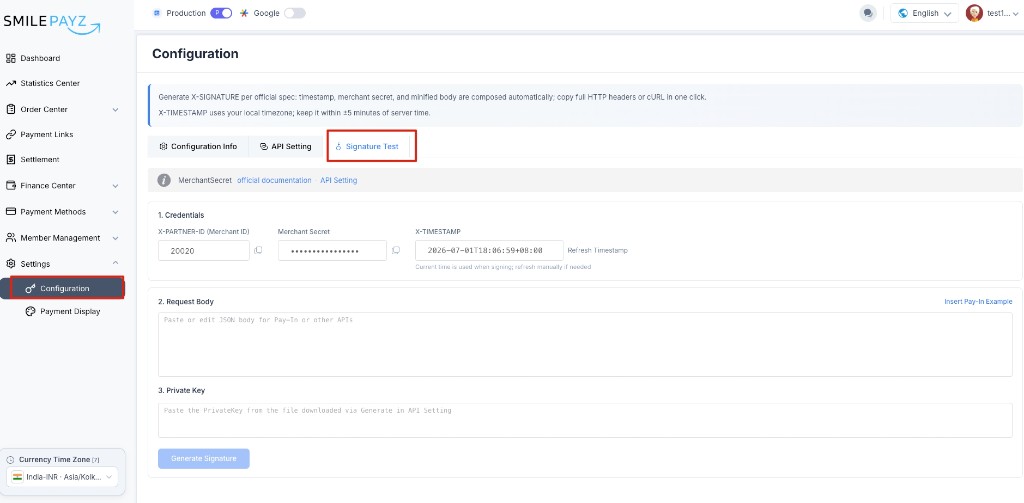
Use the Signature Test tab to validate signing before live API calls. For the full signing model, see Signature Authorization.
- On the Configuration page, open the Signature Test tab.
- Enter your merchant ID, Merchant Secret, timestamp, request body, and private key, then click Generate Signature.
- Compare the result with your local signing code output before calling the API.
Production Configuration
Production uses the same layout but different menu placement and credentials.
Step 1: Open production Configuration
- Sign in to the merchant backend.
- Ensure the top toggle is Production.
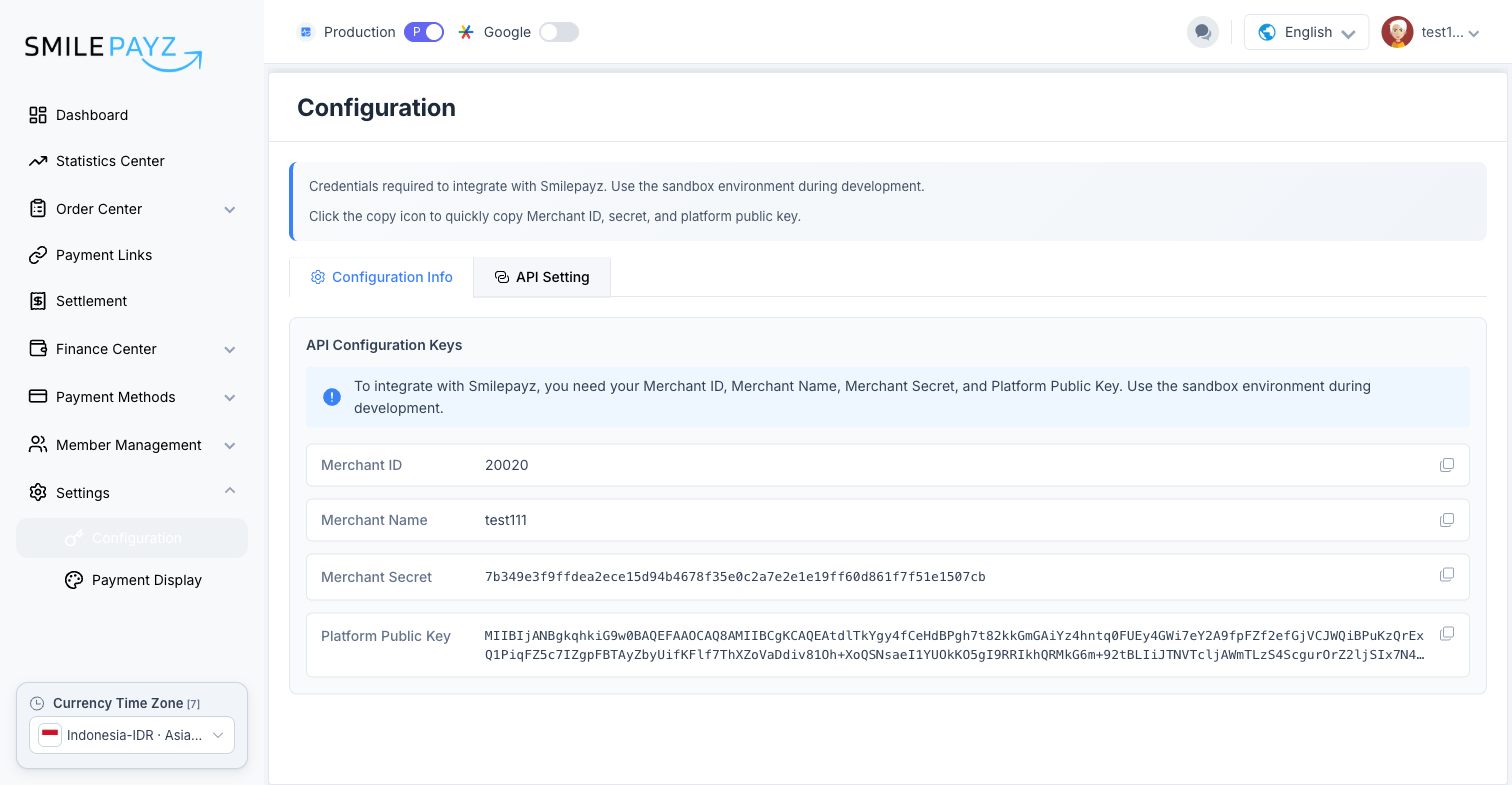
- Go to Settings → Configuration.
Step 2: Copy production credentials
On Configuration Info, copy:
- Merchant ID (production format, without the
sandbox-prefix) - Merchant Name
- Merchant Secret
- Platform Public Key
Separate environments
Do not reuse sandbox secrets, RSA keys, or callback URLs in production.
Step 3: Configure production API Setting
On API Setting, configure the same three blocks as sandbox:
- API IP White List — production server egress IP(s)
- API Notify Address — production pay-in and withdrawal callback URLs (use HTTPS)
- Merchant Public Key — generate or paste a production key pair; click Save
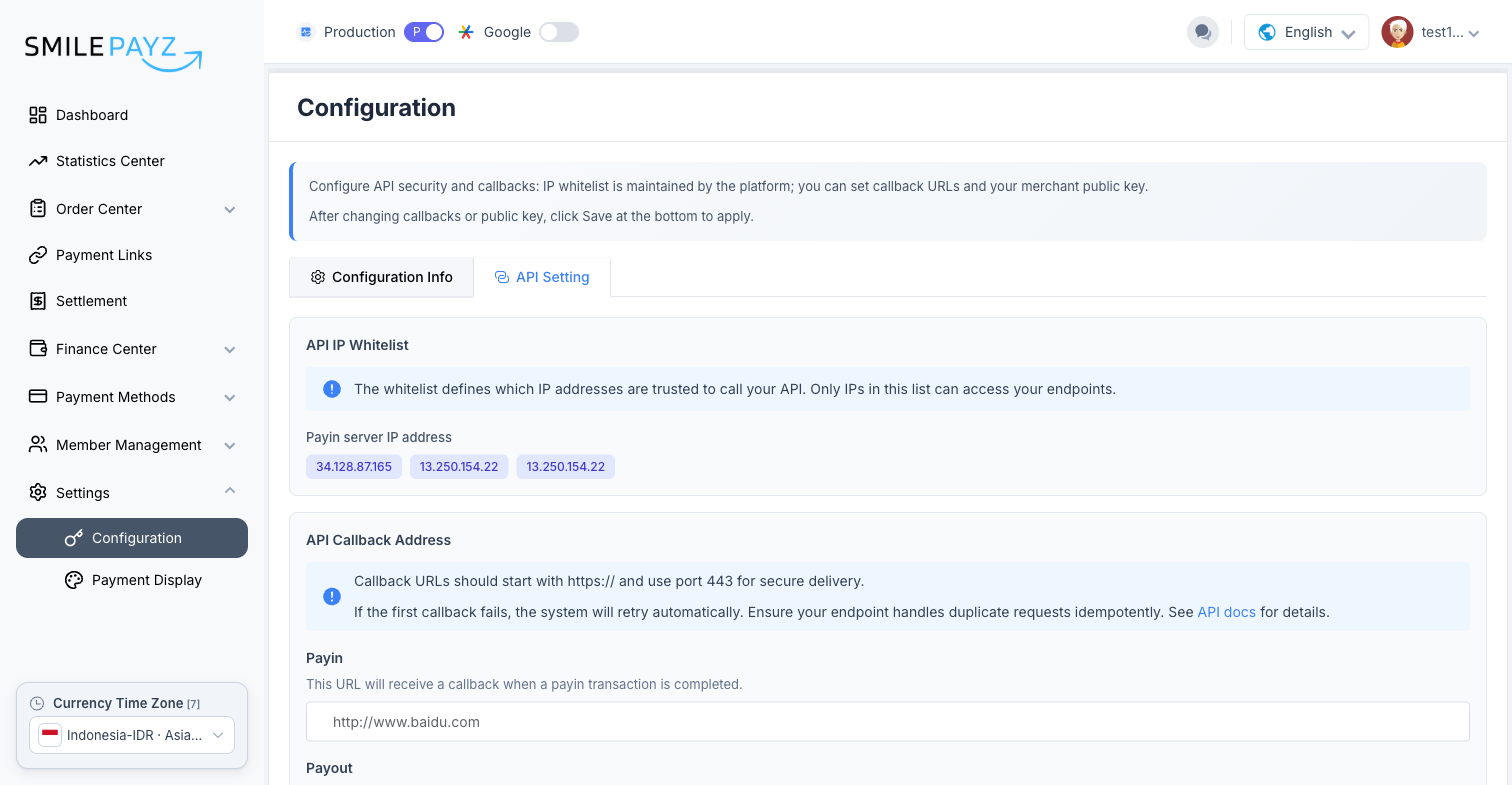
Save after changes
Always click Save on the API Setting tab after updating IP whitelist, notify URLs, or the merchant public key.
Setup Checklist
Sandbox
Production
Troubleshooting
| Issue | What to do |
|---|---|
Merchant non-whitelist API error | Add your server’s egress IP to API IP White List and Save |
| Signature verification fails | Confirm Merchant Secret, minified body, and correct merchant private key |
| Callback signature fails | Use Platform Public Key from the same environment (sandbox vs production) |
| Cannot find Configuration menu | In sandbox, use left nav Configuration; in production, use Settings → Configuration |